

These days, your website is more than just something people look at online— it’s the heart of your online presence. Just like a physical store displays business cards or contact info to stay connected with customers, your website needs clear, clickable ways for visitors to reach you.
One of the simplest and most effective ways to do that? By adding social media icons to your site’s footer.
These icons act as bridges to your brand’s presence on platforms like Facebook, Instagram, LinkedIn, and Twitter. They make it easier for users to follow your business, engage with your content, and build trust with your brand.
In this guide, we’ll walk you through exactly how to add social media icons to an HTML footer, whether you’re using WordPress, HTML/CSS, or a no-code tool like POWR. Let’s get started!
Article Shortcuts:
- Where to Add Social Media Icons on Your Website
- How to Add Social Media Icons in WordPress
- Adding Social Media Icons with POWR Widget
- Why You Should Add Social Media Icons to Your Footer
- FAQs
What Are Social Media Icons?
Social media icons are small, clickable graphics that represent various social media platforms, such as Facebook, Instagram, LinkedIn, Twitter (now X), YouTube, Pinterest, and others.
These icons typically feature the official logos or symbols of the platforms and serve as direct links to your respective social media profiles.
These icons are a simple yet effective way to enhance your website’s connectivity and digital presence.
By linking to your active social media pages, they encourage users to engage with your brand outside your website — whether it’s following, liking, sharing, or simply learning more about your business.
According to a 2025 survey, 75.8% of users include social media links (like Instagram at 69.3% and Facebook at 62.1%) in their email signatures—making this practice a cornerstone of brand consistency across channels.
Source: GRAPHICSFAMILY
A website footer is one of the most common and strategic places to display social media icons.
Since the footer appears consistently on every page of your site, it ensures that no matter where users are browsing, they always have a convenient way to connect with you on social media.
Additionally, using social media icons helps build trust and credibility. They show visitors that your business is active on multiple platforms, and they make it easy for customers to follow your updates, ask questions, or join your online community.
Where to Add Social Media Icons to Your Website
When placing social media icons on your website, it’s important to choose locations that are both visible and user-friendly. The goal is to make it easy for visitors to find and click on them without interrupting the browsing experience.

Source: wpDataTables
For example, placing them in the header will give maximum visibility, while putting them in the sidebar or as a floating bar keeps them accessible as users scroll. The contact page is also a great spot if you want your visitors to reach out or follow you.
However, the footer is one of the best places to add your social icons.
It’s clean, non-intrusive, and shows up on every page of your site. This makes it a smart choice for staying connected with visitors, no matter where they are on your website.
You can place social media icons in multiple areas of your website, depending on the design and purpose:
- Header: Best for visibility, but can be cluttered.
- Sidebar or floating bar: Keeps icons always accessible while scrolling.
- Contact page: Ideal if your contact form is heavily used.
- Footer: Clean, subtle, and accessible across every page.
For most websites, the footer is the go-to spot because it keeps things neat while ensuring users can still find your links easily.
Expert advice
"The footer is the best place to add icons that scoop visitors over to social networks. …72% of top marketing websites put social media icons in the footer." — Andy Crestodina, Orbit Media Studio
How to Add Social Media Icons in WordPress
If you're using WordPress, adding social media icons to your footer is quick and beginner-friendly.
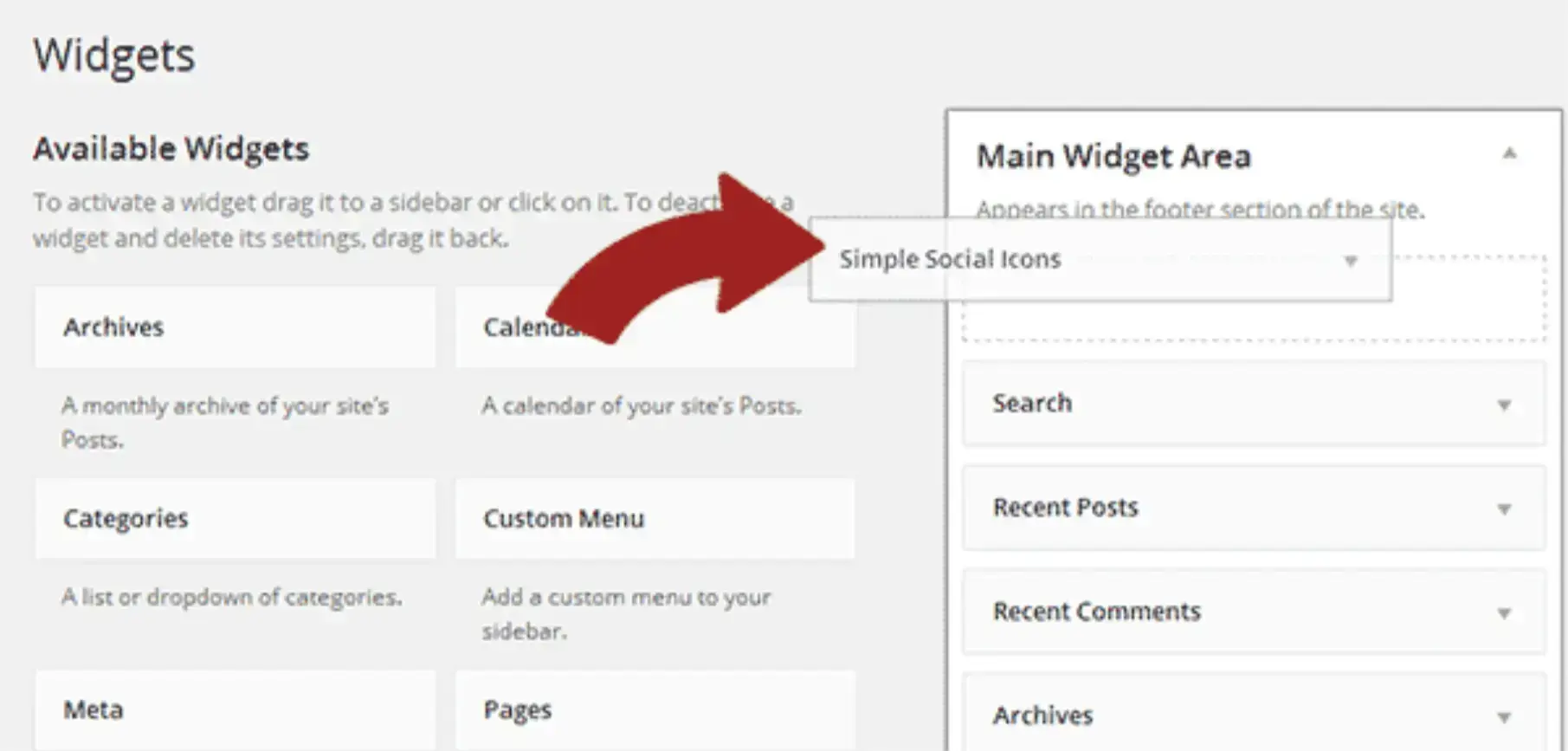
You can do it by using the built-in Widgets feature, where you simply drag and drop a Text or Custom HTML widget into your footer area and paste in the icon code.
Source: isitwp
If you're using WordPress, there are a few easy ways to add social media icons to your footer:
1. Using WordPress Widgets
- Go to your WordPress Dashboard → Appearance → Widgets.
- Find the Footer widget area.
- Add a Custom HTML or Text widget.
- Paste the HTML code for your icons, like:
html
CopyEdit
<div class="social-icons">
<a href="https://facebook.com/yourpage" target="_blank">
<img src="https://cdn-icons-png.flaticon.com/24/733/733547.png" alt="Facebook">
</a>
<a href="https://twitter.com/yourprofile" target="_blank">
<img src="https://cdn-icons-png.flaticon.com/24/733/733579.png" alt="Twitter">
</a>
</div>
- Save changes. You're done!
Tip: Style your icons using CSS to adjust spacing or size:
css
CopyEdit
.social-icons img {
margin: 0 10px;
width: 24px;
height: 24px;
}
2. Using WordPress Plugins
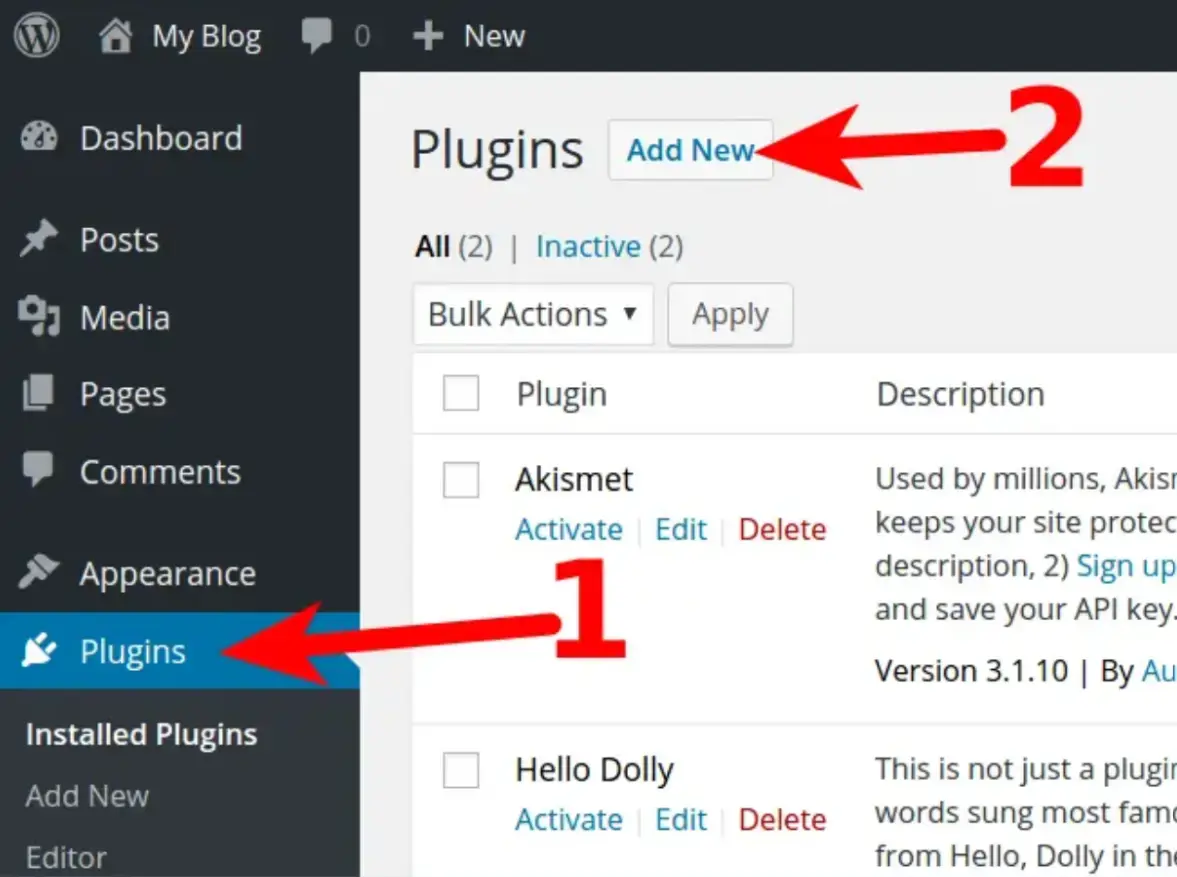
If you want more customization without coding, try a plugin like:
- Social Icons Widget by WPZOOM
- Simple Social Icons
- Smash Balloon Social Photo Feed
Source: inmotion hosting
Install your chosen plugin, go to the settings, and follow the instructions to add icons in your footer.
Adding Social Media Icons with a POWR Widget
Not comfortable with code? No problem! You can use a social media icons plugin to quickly add responsive, clickable icons without any coding required.
Not comfortable with code? No problem! The POWR Widget is a powerful, no-code tool that makes it easy to add beautiful and responsive social media icons to your website. It’s perfect for beginners or anyone looking for a quick, drag-and-drop solution without needing to touch any HTML or CSS.
Plus, it offers customization options like icon styles, hover effects, and layout choices—so your icons can match your site’s design perfectly.
You can embed the widget directly into your footer, header, or sidebar, depending on where you want the icons to appear. POWR also supports integration with platforms like WordPress, Wix, and Shopify, making it a versatile option no matter what website builder you’re using.
Here’s how you can use the POWR Widget to add social icons:
- Go to the POWR Social Media Icons Widget: Visit POWR.io and select the Social Media Icons plugin.
- Customize your icons: Choose which social platforms you want (e.g., Facebook, Instagram, LinkedIn), and adjust icon style, layout, size, and colors to match your website's branding.
- Generate the embed code: Once you're happy with the design, POWR gives you a custom HTML embed code.
- Add it to your site:
-
- For standard websites: Paste the code directly into your site’s footer section in the HTML.
- For WordPress: Use the POWR plugin or add the code using a Custom HTML widget in your footer.
Why You Should Add Social Media Icons to Your Footer
It’s more beneficial to connect your social media feeds with your website and digital assets than to leave them as standalone channels.
Expert Advice:
"Adding social media icons to your website is one of the easiest ways to increase user engagement and drive traffic from your site to your social channels." — neilpatel.com
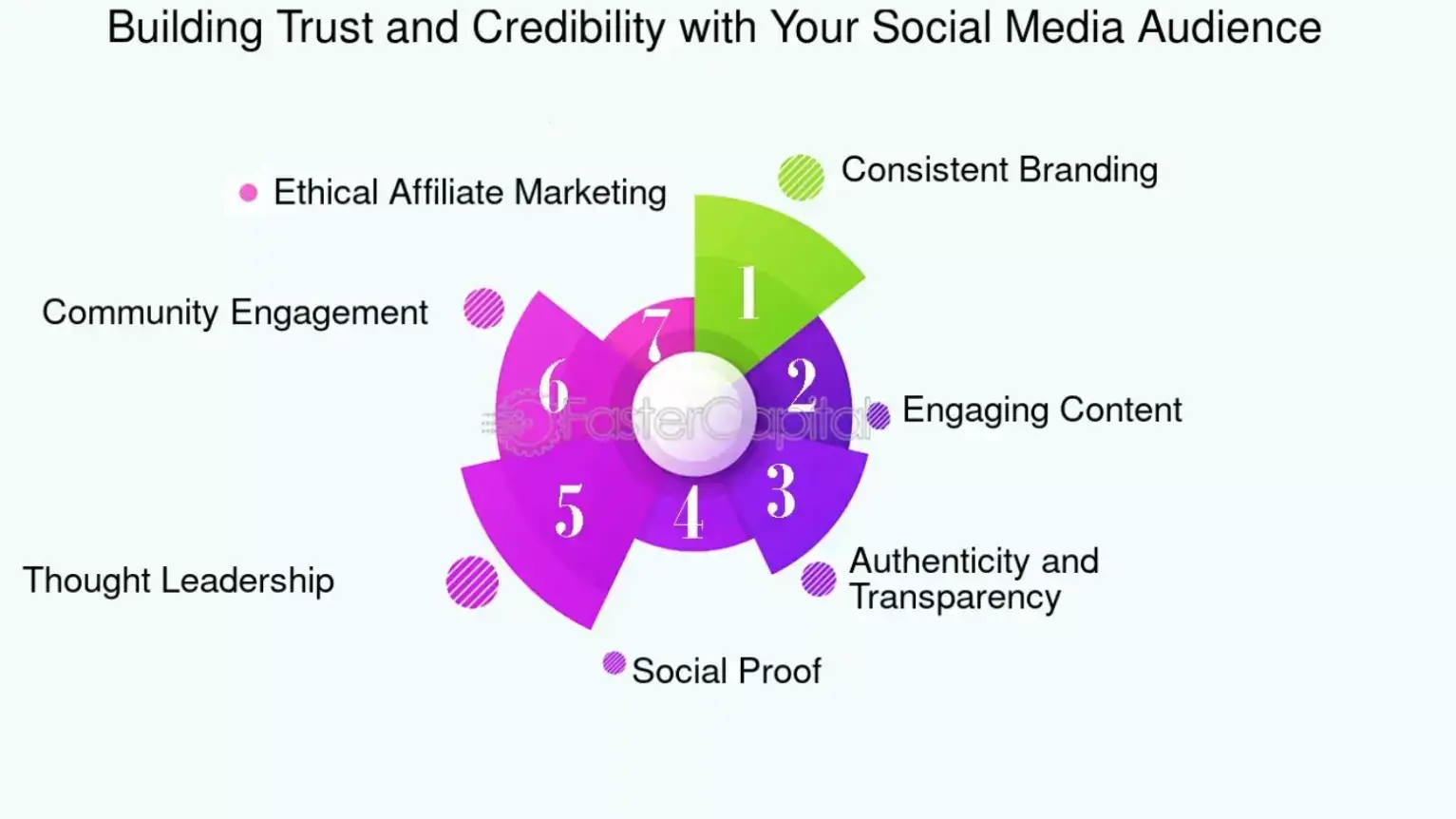
1. Boost Credibility
Displaying active social media links builds trust with visitors. It shows your brand is real, responsive, and transparent—especially when backed by strategies like conducting a local SEO audit to boost business visibility, which reinforces trust and reach.
Source: FasterCapital
2. Drive Traffic
Footer icons encourage users to explore your social platforms. This can lead to more engagement, followers, and conversions—especially when paired with strategies like combining SEO and PPC for maximum visibility on your site.
3. Improve Connectivity
Visitors can instantly follow, like, or message you through your social channels. It shortens the communication gap between you and your audience.
4. Build Brand Visibility
Consistent branding across your website and social platforms increases recognition. The more touchpoints, the more memorable your brand becomes.

Source: wpDataTables
5. Enhance User Experience
Adding icons to your footer makes navigation easier for users. It’s a subtle but effective way to guide them toward further interaction with your brand, especially when supported by smart personalization of your site’s design and UX, which keeps users engaged longer.
Integrating your social media with your website creates a seamless experience for visitors. It shows that your brand is active, trustworthy, and engaged with its audience.
Plus, it makes it easier for users to discover, follow, and interact with your social profiles—ultimately helping you grow your online presence and community.
FAQs
1. Why should I add social media icons to my website footer?
Adding social media icons in the footer ensures they appear on every page of your website. It helps improve visibility, encourages user engagement, builds brand trust, and drives traffic to your social platforms—without distracting from your main content.
2. Do I need coding knowledge?
Not necessarily. If you use a website builder like WordPress or tools like POWR, you can add social icons using widgets or plugins without writing code. However, if you’re using pure HTML/CSS, you’ll need to insert code snippets manually.
3. Can I customize the icons?
Yes! You can fully customize the icons using CSS or a visual widget editor. This includes adjusting icon size, spacing, color, hover effects, and layout to match your site’s design.
4. Which platforms should I include?
Focus on platforms where your business is active and your audience engages most. Common options include Facebook, Instagram, LinkedIn, X (Twitter), and YouTube. Avoid linking to inactive or outdated accounts.
5. Will adding icons slow down my website?
Not if done correctly. Use optimized image files or lightweight SVG icons, and avoid loading too many third-party scripts. Plugins or widgets from trusted sources also help maintain fast loading times.
Conclusion
Adding social media icons to your HTML footer is a simple yet impactful way to enhance your website’s functionality and connect with users across platforms. It ensures consistent visibility and professionalism while offering an easy method for visitors to engage with your brand.
For those managing multiple links, using a URL opener can streamline testing and improve workflow efficiency.
Your footer plays a key role in your site’s layout because it appears on every page, making it ideal for consistently showcasing important elements like social media icons, so you provide visitors with an easy way to connect with your brand.

Author Bio
Anisha Bhandari is a digital marketing enthusiast at FettleAndSports.com. She specializes in creating practical how-to guides and marketing content that helps users build a stronger online presence. With a passion for simplifying complex tech, she writes about Saas and strategies for small businesses and creators.