
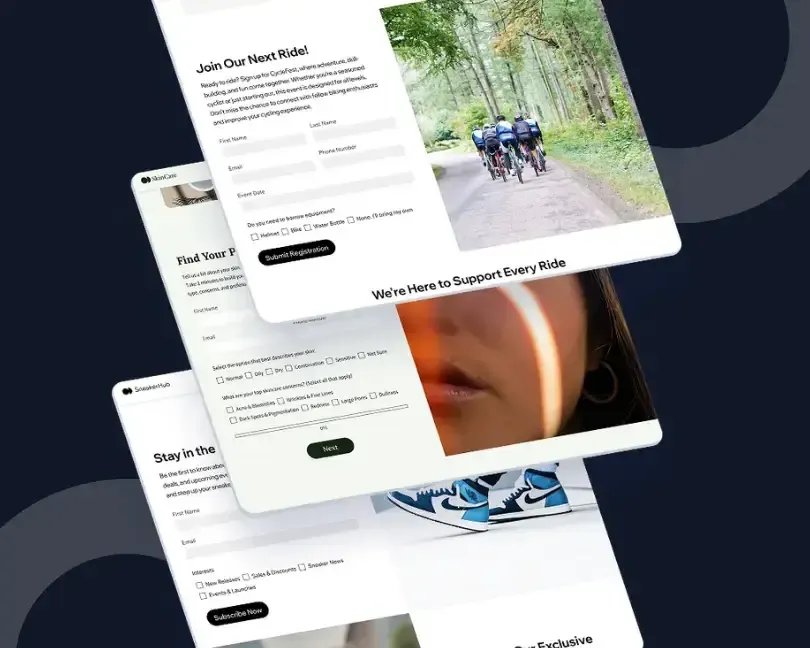
Ask most e-commerce merchants how they capture new leads, and the answer is usually the same: a contact form. Collect an email address, maybe a phone number, and wait for someone on the team to follow up.
But as Harvard Business Review researchers discovered, speed is everything. Sales teams are seven times more likely to reach a prospect when they respond within an hour of the inquiry and 60 times more likely to qualify that lead compared with waiting 24 hours or more.
A contact form that merely dumps submissions into an inbox can’t deliver that kind of responsiveness. To turn submissions into sales, your Shopify form has to plug directly into your CRM, your email marketing system, and your sales tools.
Integration, not collection, is what makes form submissions valuable. Simply gathering data and hoping someone checks it later leaves money on the table.
A stronger Shopify form acts as the first step in the customer journey: it updates your CRM, triggers timely emails, and alerts the right people without manual hand-offs.
In this article:
- The Lead Dies in the Hand-Off, Not the Form
- A Connected Form is the First Step of the Funnel, Not the Last
- Ask Only for What the Follow-Up Will Actually Use
- Wire the Form Directly to Your CRM, Not Through an Inbox
- Match the Follow-Up to the Visitor's Intent
- Route by Intent, Not by Inbox
- Transparent Consent isn't just Compliance. It Builds a List Worth Having
- Test the Full Path Before You Publish

The Lead Dies in the Hand-Off, Not the Form
Here’s a typical scenario: a shopper clicks “Contact Us” and fills out a form asking for a product demo. The submission triggers an email to a shared inbox.
Someone eventually forwards it to the sales team. By the time a rep responds, the prospect has already booked a demo with a competitor.
These breakdowns happen because the hand‑offs between form, inbox, CRM, and team aren’t automated. Each time a human has to copy and paste information or decide who should take the next step, there’s delay and risk.
The longer your response time, the lower your chance of turning a query into a conversation. The solution isn’t just more people checking email; it’s connecting your form directly to the tools that manage leads and marketing.
A Connected Form is the First Step of the Funnel, Not the Last
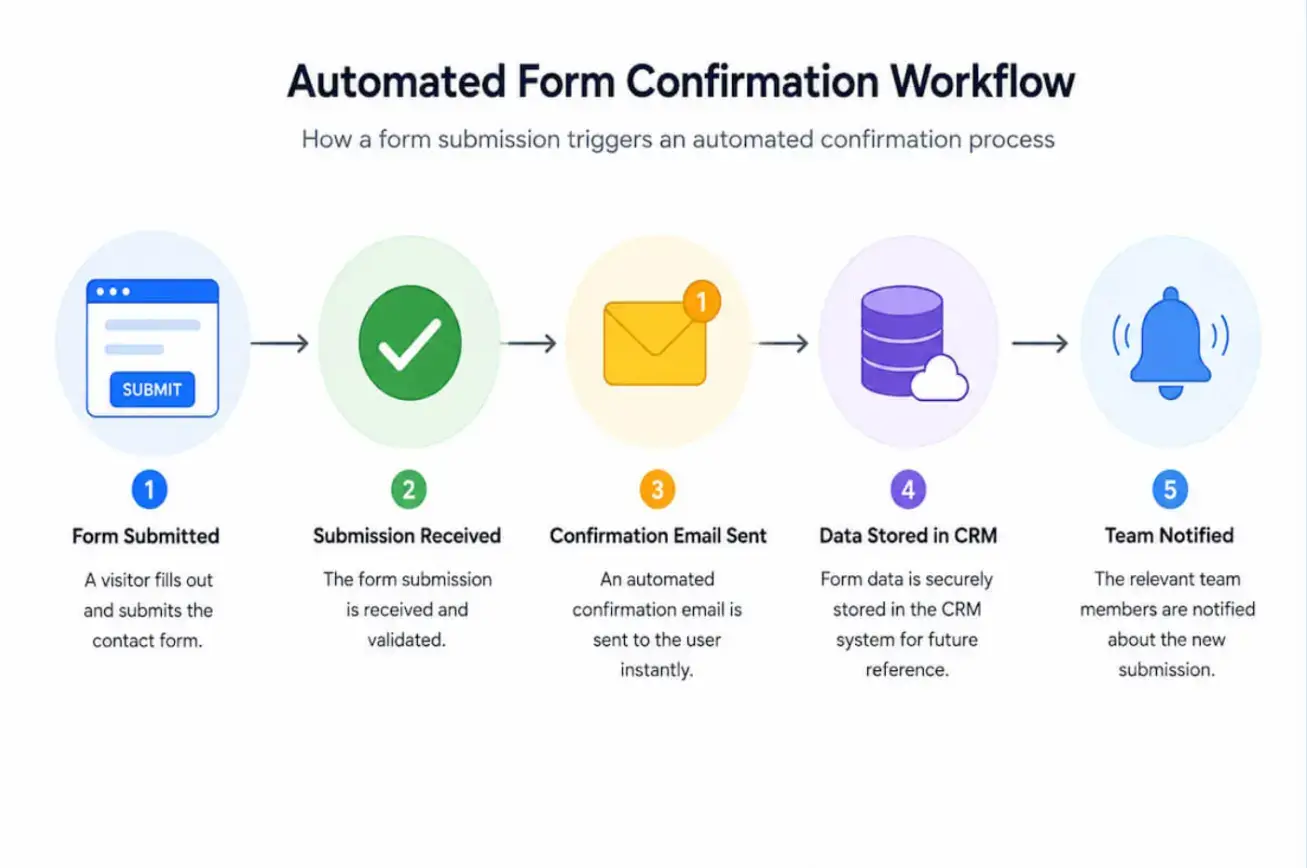
A connected form doesn’t live in isolation. It’s the top of a funnel that automatically feeds data to other systems. An integrated form should be able to:
- Create or update a contact in your CRM. The moment someone submits the form, their details are recorded in your customer database. If their email already exists, the form updates their record instead of duplicating it.
- Trigger a personalised email sequence. A confirmation email is sent right away. If the form was a newsletter sign‑up, the new subscriber enters your welcome series. If it was a demo request, they get an email with next steps and a scheduling link.
- Alert the right teammate. High‑value enquiries might ping a salesperson on Slack or create a card in Trello. Support questions go straight to your help desk.
- Segment and tag the lead. The submission is labelled (e.g., “demo request”, “newsletter sign‑up”, “wholesale enquiry”) so marketing and sales teams can filter and prioritise.
Once you know what the form needs to do, create or update a CRM contact, trigger the right email, alert the right teammate, and apply useful tags. You can choose a form tool that supports those hand-offs.
For Shopify merchants, POWR Form Builder can help here because it lets you build contact forms, signup forms, quote forms, surveys, order forms, and other lead-capture forms that collect the details your follow-up workflow needs.
Ask Only for What the Follow-Up Will Actually Use
Before building connections, decide what the form is for.
A demo request needs a name, email, and a short description of what the shopper wants to see. A quote request might also ask for company size or budget range.
A newsletter sign‑up should only ask for an email address. Keep it simple: every extra field reduces completion rates, so only request information you’ll use.
Once you’ve defined the form, map each field to your CRM and email tools.
In Shopify’s ecosystem, that might mean syncing form data with Shopify’s built-in customer records for basic contact management, or connecting to a dedicated CRM such as HubSpot, Salesforce, or Zoho CRM through a native integration or automation tool. Make sure:
- Standard fields match. First name goes to the first name field, company goes to the company field, and the message goes into notes or inquiry details.
- Custom questions have a home. If you ask for “budget range”, create a custom property in your CRM to store it. This lets sales reps see at a glance whether the lead fits their tier.
- Sources are tracked. Identify where the form was displayed (e.g., pricing page, blog footer) so you know which touchpoints generate the best leads.
Good mapping produces clean data. When sales opens a record, they shouldn’t have to decipher unlabelled notes to understand what the lead wants.
Wire the Form Directly to Your CRM, Not Through an Inbox
Your CRM is the command centre of your sales process. Connecting your form ensures that no inquiry falls through the cracks.
Most Shopify‑compatible CRMs offer native form integrations or can be connected through automation platforms like Zapier. Here’s how to set it up:
- Choose your CRM. Popular options include HubSpot, Salesforce, and Zoho CRM. Shopify’s own customer management system works for basic needs but may lack advanced pipelines.
- Use a connector or app. Use your form builder’s integration settings, or an automation tool, to send each submission into your CRM. Select your CRM from the integration list and authorise the connection.
- Map the fields. Select each form field and map it to the corresponding CRM property. Decide whether to create a new record or update an existing one when the email address matches.
- Assign an owner and pipeline stage. Set a default owner or use rules (see Lead Routing below) to determine who receives the lead. Choose which pipeline stage the lead should enter—e.g., “New Lead” or “Contacted”.
From this point onward, your CRM becomes the single source of truth for every new submission, and reporting is consistent across marketing and sales.
Match the Follow-Up to the Visitor's Intent
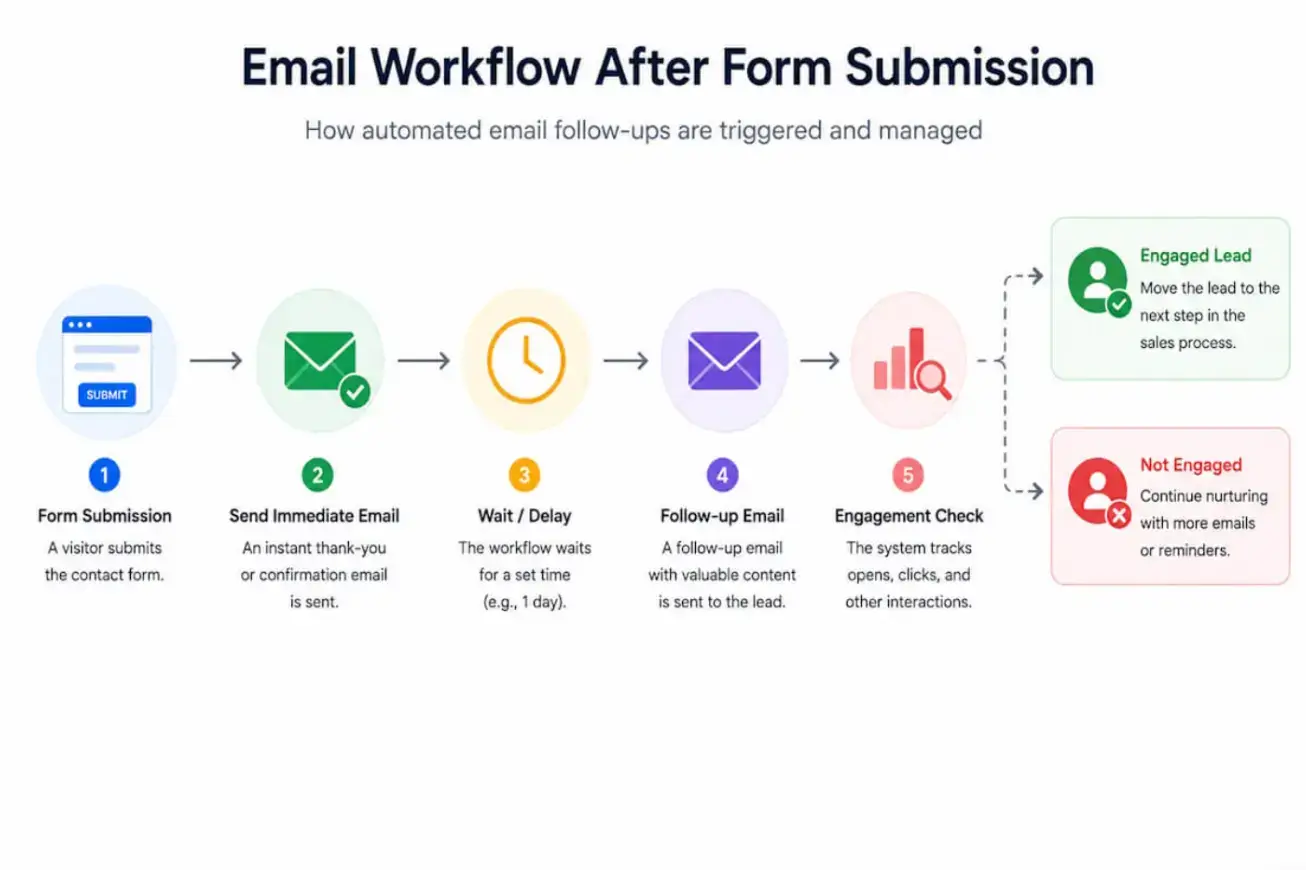
Email is the bridge between a cold lead and a conversation. When someone fills out your form, they expect a response.
Linking your Shopify form to your email marketing platform ensures that welcome messages and nurture sequences are instant and personalised. To do this:
- Pick an email tool. Shopify Email is built in, while services like Mailchimp and Klaviyo offer more advanced automation and segmentation.
- Create a welcome flow. Set up an automated sequence triggered by the form. For a demo request, the first email might acknowledge the request and provide a link to book a slot. For a newsletter sign‑up, send a welcome email with a content roundup and an optional discount code.
- Segment by interest. Use the tags or fields from your form to branch the automation. Subscribers interested in a specific product should receive content relevant to that product, while wholesale enquiries get information about bulk pricing.
- Update contact status. Each time someone clicks an email or books a demo, update their status in your CRM. This keeps your sales team informed about engagement.
These flows take time to set up once, but they remove hours of manual follow-up later. More importantly, they keep the response tied to the visitor’s intent.
A demo request should not receive the same follow-up as a newsletter signup, and a wholesale inquiry should not be treated like a general contact form.
Route by Intent, Not by Inbox
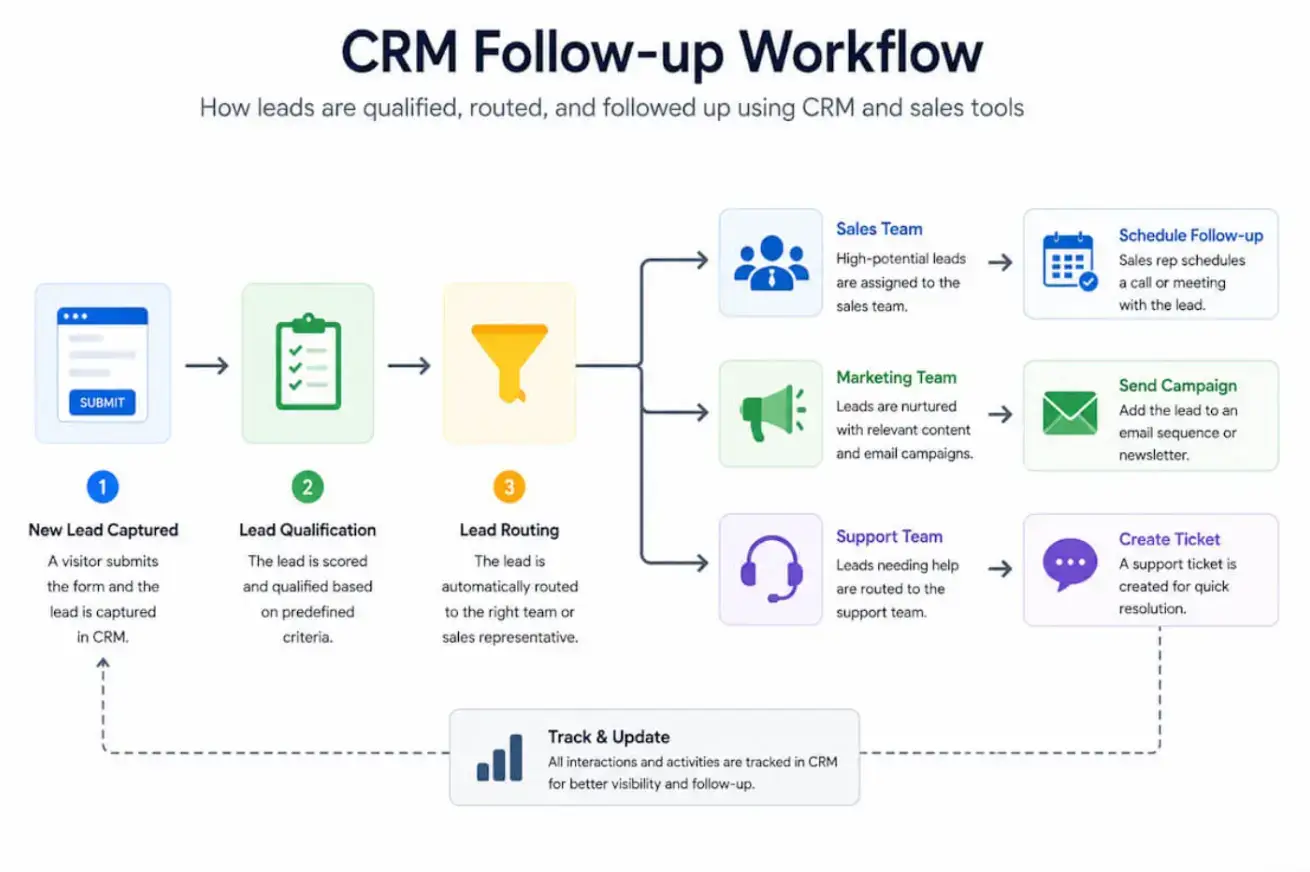
If every form submission goes to one shared inbox, someone still has to read the message, decide what it is, and forward it to the right team. That slows down the response and creates room for mistakes. Lead routing makes that decision automatically.
If you operate across regions, location or language fields can send the lead to the right local contact. If the form includes a budget or company-size field, higher-value opportunities can be flagged for faster sales follow-up.
Tags add another layer of context. Instead of dropping every submission into the CRM as a generic contact, use tags to show intent, source, and next step.
For example, a lead from a pricing-page quote form should be easy to distinguish from a blog newsletter signup or an existing customer asking for support.
That context also improves reporting. Blog forms may produce a high volume of subscribers, while pricing-page forms may produce fewer but stronger sales opportunities.
Quote forms with budget fields can help the team prioritise better-fit leads sooner. The point is not to collect as many submissions as possible; it is to make each submission easier to understand and act on.
Transparent Consent isn't just Compliance. It Builds a List Worth Having
Collecting email addresses and personal data carries legal and ethical obligations. Visitors should know why you need their information and what you’ll do with it.
To respect privacy and comply with regulations such as GDPR, make consent clear, specific, and separate from the basic act of submitting a form.
- Use clear language: “I agree to receive updates and promotional emails.”
- Provide separate checkboxes for service notifications and marketing messages if possible.
- Honour opt‑out requests immediately by removing contacts from marketing lists.
Transparent consent builds trust. It also ensures that the people who stay on your list actually want your content, which improves open and click rates.
Test the Full Path Before You Publish
Never assume your automations work as intended. Before publishing your form, put yourself in your customer’s shoes and test every step:
- Submit the form. Check that the thank‑you message displays correctly and that the form behaves well on both desktop and mobile.
- Open the confirmation email. Verify that it arrives quickly and contains accurate information.
- Inspect the CRM record. Ensure all fields are populated correctly, tags are applied, and the lead is assigned to the right owner.
- Check the notifications. Make sure that Slack or email alerts reach the intended recipients, and that follow‑up tasks appear in your project management tool.
By testing each component, you prevent embarrassing misfires and ensure that the customer experience is as smooth as your own processes.
When a form is disconnected, the lead waits in an inbox, the team loses context, and follow-up depends on someone remembering to take the next step.
When the form is connected to your CRM, email platform, and sales workflow, the submission becomes useful immediately: the record is created, the right follow-up starts, and the right person knows what to do next.
That is the difference between collecting inquiries and managing leads. Shopify merchants do not need more form submissions sitting untouched. They need forms that move each inquiry into the right system while the customer is still interested.
Frequently Asked Questions
What is CRM integration?
CRM integration is the process of connecting your customer relationship management platform with other business tools so information can move automatically between systems.
Why is CRM integration important for contact forms?
CRM integration ensures that form submissions are automatically stored, assigned, and tracked without manual data entry.
Can contact forms connect to email marketing tools?
Yes. Contact forms can add subscribers to an email list, send confirmation emails, deliver downloads, and start welcome or nurture email sequences.
What is field mapping?
Field mapping means matching each form field to the right field in another tool. For example, the form’s email field should map to the CRM’s email field.
How can I avoid duplicate contacts?
Use email address as the main matching field. Set your workflow to update an existing contact when the same email is submitted again.
What should happen after someone submits a form?
The visitor should see a clear confirmation message, receive a relevant email if needed, and your team should get the submission in the correct tool.
How many fields should a contact form have?
Use only the fields needed for the next step. A basic contact form may need name, email, inquiry type, and message. A quote form may need more detail.

Author Bio
Arjun S is a business growth strategist at a software development company. Apart from building long-term relationships with customers and boosting business revenue, I am also interested in sharing my knowledge of various technologies through successful blog posts and articles.