

When someone lands on your product page, the first thing they look at isn't the price or the title. It's the image.
Baymard Institute, a UX research firm that's spent years watching people shop online, found that 56% of shoppers explore product images first, before reading anything else.
Which makes sense, when you can't pick something up, the photo is doing the work the store would do in person.
That's why product imagery quietly does more selling than almost anything else on your site. That is why product imagery quietly does more selling than almost anything else on your site.
The good news? You don't need a studio or a design degree to keep up anymore. The tools have caught up. Below are twelve that show up over and over in the workflows of stores that are actually shipping good imagery.
None of them does everything on its own; that's not how this works, but used together, they cover most of what a small e-commerce team needs.
Best AI-Powered Product Image Tools
1. QuillBot (AI Background Generation)
Most people know QuillBot for writing and editing, but its image tools have quietly become useful for e-commerce work.
It runs in your browser, doesn't ask for an account, and pairs well with a background-removal tool when you need to drop a product into a new scene.
If you've spent any time hunting through stock libraries for a backdrop that almost works, this is a faster way to get exactly the one you want.
2. Remove.bg (Automatic Background Removal)
Background removal is one of the most tedious jobs in product photography, and Remove.bg just does it for you.
The tool finds the edges and produces a clean cutout in seconds. It works best on products with defined silhouettes and good contrast against the original background.
If you're listing on Amazon, which requires a pure white background for primary images, this alone will save you hours.
Best Professional Photo Editing Software
3. Adobe Photoshop
Photoshop is still the heavyweight. There's a learning curve, and the subscription stings, but for detailed retouching, compositing, and color work, nothing matches the level of control.
If you need to get the metal finish on a watch looking exactly right, or you're handling complex shadow work for a hero shot, this is the tool that earns its keep.
4. Adobe Lightroom
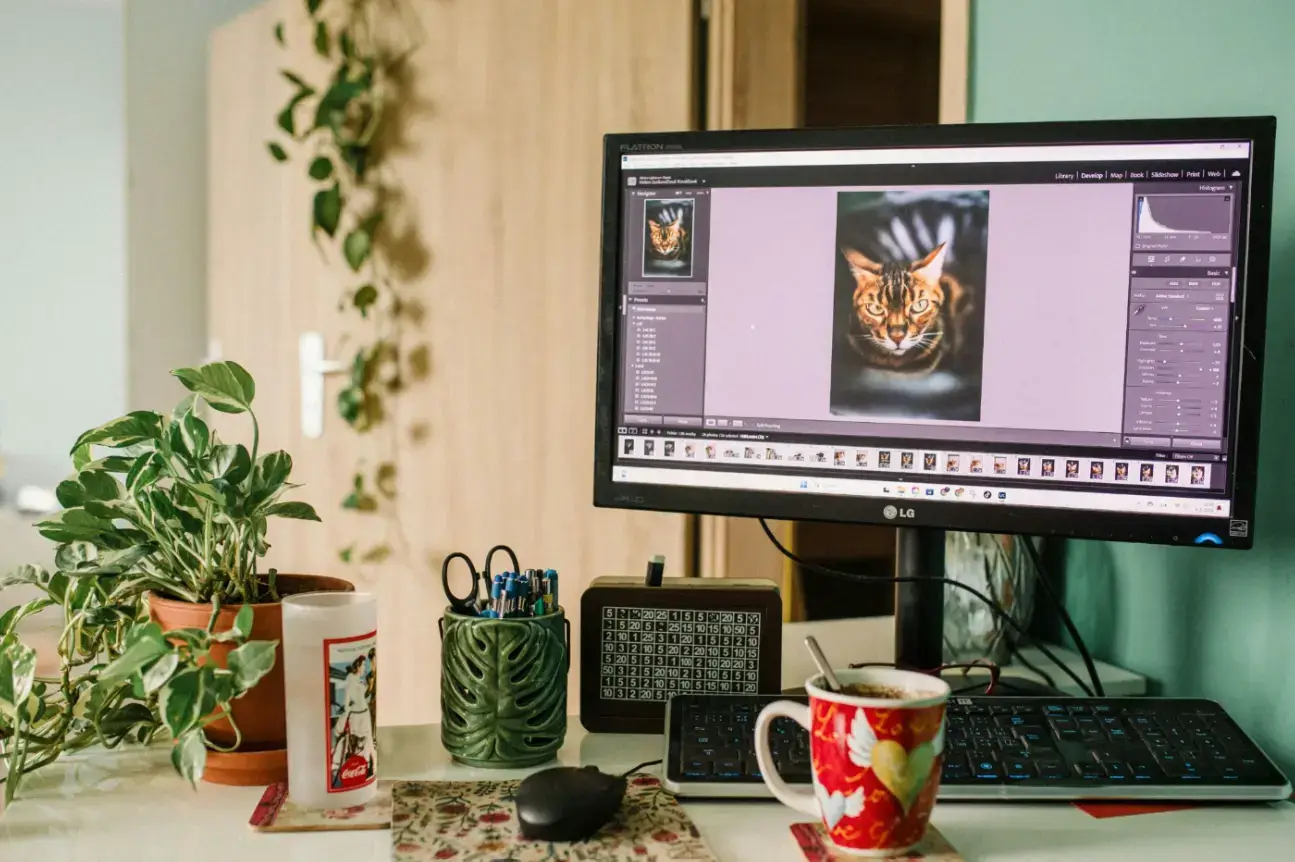
Lightroom is the one to reach for when you're working at volume. Presets are the whole game; apply the same color grading and exposure across an entire shoot in one pass, and your catalog suddenly looks like it came from the same brand.
Editing is non-destructive, too, so you can experiment without worrying about ruining originals. For consistency across hundreds of images, it's hard to beat.
Source: Pexels
5. Affinity Photo
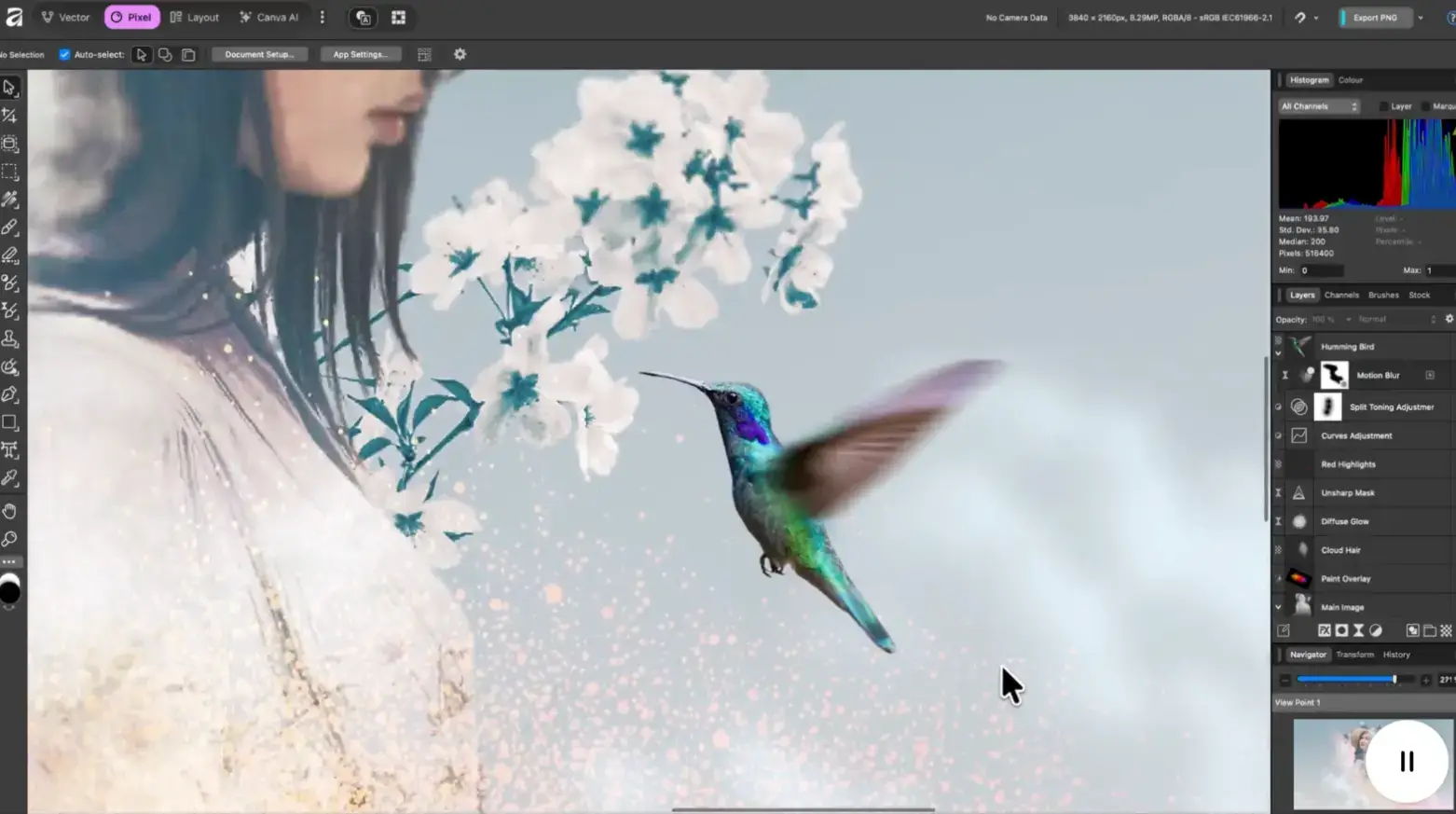
Affinity Photo gives you professional-grade editing, RAW processing, HDR merging, focus stacking, and the works for a one-time payment.
For teams that have outgrown free tools but don't want to be locked into Adobe's subscription forever, it's the most credible alternative going.
The interface is closer to Photoshop than GIMP is, so the switch isn't painful if you're coming from Adobe.
Source: Affinity Photo
6. Pixelmator Pro
Pixelmator Pro is Mac-only and lives somewhere between Canva and Photoshop in capability. The big draw is the pricing. It's a one-time purchase, not a subscription, which is increasingly rare in this category. The machine learning features for selection, repair, and upscaling are actually useful, not just marketing fluff.
Best Free and Budget-Friendly Editing Tools
7. Canva
Canva sits at the opposite end. It's built for speed, drag, drop, and done.
The real value of Canva Pro, though, is the brand kit, which is where teams managing visual consistency across a catalog start to feel the difference.
8. Snapseed
Snapseed is Google's free mobile editor, and the reason it earns a spot here is simple: it lets you do serious editing from your phone.
If you're a solo operator shooting on your phone, this gets you most of the way to a finished product image without ever opening a laptop.
9. Pixlr
Pixlr lives in your browser, which makes it the easiest option when you need to edit something fast from whatever device you happen to be on.
It offers two modes: a simple express editor and a more capable advanced one, so it scales with what you actually need to do.
Useful for teams working across locations, or for sharing access with a contractor without setting up software licenses.
10. GIMP
GIMP has been the free alternative to Photoshop for a long time. The interface is dated, and the learning curve isn't gentle, but it handles layers, masks, filters, and complex selections, basically all the heavy lifting. If you're keeping software costs near zero, the gap between GIMP and Photoshop is smaller than people assume.
11. Photopea
Photopea is basically Photoshop running in a browser tab. It opens PSD files, copies most of the Adobe interface, and works without any installation.
It's not a full replacement for Photoshop if you're in there every day, but for quick fixes on a borrowed machine, or anyone who occasionally needs Adobe-level capability without an Adobe license, it covers a lot of ground.
12. Fotor
Fotor combines a photo editor with a graphic design tool, which is handy when product images need to go straight from editing into ad creative or social posts. It has templates pre-sized for Amazon, Etsy, Shopify, and the major social platforms.
The batch processing is genuinely useful too, resizing and watermarking a hundred images one at a time isn't anyone's idea of a good afternoon.
A Practical E-commerce Product Image Workflow
Here's the thing nobody tells you: tools don't produce results. Workflows do.
The difference between stores that ship strong imagery consistently and stores that struggle isn't usually the software; it's the sequence of steps the team has agreed to follow.
A workflow that actually works for a small e-commerce team usually looks something like this:
Step 1: Capture Consistent Product Photos
Same backdrop, same lighting position, same camera height, every time. The Adobe blog has a useful breakdown of a home studio setup that covers the basics.
Time spent here pays off later, when you're not fighting to color-correct ten different lighting setups.
Step 2: Remove Backgrounds
Run images through Remove.bg or similar to isolate the product cleanly. If you're selling on Amazon, the pure white background is non-negotiable for your primary listing image, so this is where you handle that.
Step 3: Create Lifestyle and Promotional Images
For lifestyle or seasonal images, generate a backdrop in something like QuillBot's AI Background Generator and composite the product over it. This is how you keep a consistent visual look without paying for matching stock photos that don't quite exist.
Step 4: Batch Edit for Consistency
Pull everything into Lightroom and apply a preset for color grading, exposure, and sharpening. This is where your catalog starts looking like it belongs to one brand instead of twelve different ones.
Step 5: Refine High-Value Product Images
For your top products, do a final pass in Photoshop, Affinity Photo, or Pixelmator Pro. Clean up any flaws, tweak reflections, and fix anything the batch process didn't catch. You don't need to do this for everything, just the images that are doing the most selling.
Step 6: Export for Every Sales Channel
Resize and export for each platform, square for Instagram, wider for product pages, marketplace-specific for Amazon or Etsy. Fotor or Canva handles bulk resizing well.
That's it. Six steps, documented once, then repeated forever. Once you have it written down, it scales as the catalog grows, and you stop reinventing the wheel every time a new product launches.
If you're still figuring out the actual shooting part, POWR's DIY product photography guide is a solid starting point on setup, lighting, and composition.

Source: Pexels
Building Your Product Photography Stack Without Overspending
What you actually need depends on your catalog size, your budget, and where you sell.
A solo Etsy seller can probably get the whole job done with Canva and Snapseed. A mid-sized Shopify store likely needs Lightroom for batch work and a more detailed editor for the important shots. A team running several thousand SKUs across marketplaces needs a more layered stack.
Start with the free or cheap options, build the workflow first, and upgrade specific stages once you've actually found the bottleneck. Nine times out of ten, the bottleneck turns out to be the shooting or the workflow itself, not the software.
Your product images are doing more work than almost anything else on your site. They drive the click, set the expectations, and build the trust that turns a browser into a buyer. They also tie into the bigger picture of how your product page performs.
POWR's guide to optimizing e-commerce product pages is worth reading for the wider context on what else influences conversion.
And since AI is reshaping the toolkit pretty quickly, POWR's roundup of practical AI tools for e-commerce is a useful read on where things are heading.
Putting real time into a workflow, not just collecting tools, is one of the highest-return things a small e-commerce team can do.
Conclusion: Better Product Images Start With Better Processes
The quality of your product images has a direct impact on how shoppers perceive your brand, evaluate your products, and ultimately decide whether to buy.
While there are more editing tools available today than ever before, the biggest gains rarely come from finding the perfect piece of software. They come from building a repeatable process that helps you produce consistent, high-quality images at scale.
Whether you're a solo seller managing a handful of products or a growing e-commerce team overseeing thousands of SKUs, start by identifying the gaps in your current workflow.
A simple combination of background removal, batch editing, and detailed retouching can dramatically improve the professionalism of your product catalog without requiring a large budget.
The goal isn't to use every tool on this list. It's to create images that clearly showcase your products, build trust with shoppers, and remove friction from the buying process.
When your visuals consistently meet customer expectations, better engagement, stronger conversion rates, and higher sales often follow naturally.
Frequently Asked Questions
What's the Most Important Tool for E-commerce Product Photography?
There isn't one. What you really need is three capabilities: a way to remove or swap backgrounds, a batch editor for consistency across a catalog, and a detailed editor for your hero shots. Which specific tools you pick depends on your budget and platform, but a workflow that's missing any of those three is going to fall behind at some point.
Do I Need Expensive Software to Create Professional Product Images?
Not really. A stack built entirely on free tools: GIMP, Canva's free tier, Remove.bg, Snapseed, QuillBot's background generator can produce competitive results, especially for smaller catalogs. Paid tools start being worth the money when your volume grows, your consistency requirements get tighter, or a specific marketplace starts eating real hours of your week.
How Can I Keep Product Images Consistent Across a Large Catalog?
Write down a style guide. Background choices, lighting direction, angles, color treatment, all of it. Then use a batch editor like Lightroom to apply the same grading and adjustments across every image in a category. AI background generators help here, too; producing matching custom backdrops is much faster than trying to find stock photos that line up. Consistency is really just documented standards plus batch processing; that's the whole trick.

Author Bio
Nimisha Sureka is a SaaS (Software as a Service) content writer at Anchorial, a link-building agency. With extensive experience writing for SaaS brands from early-stage startups to established platforms, she specializes in turning complex products into clear, compelling narratives that rank, resonate, and convert.