
The migration screen in the Google & YouTube app shows a green checkmark. Underneath it, Google Ads reports twelve purchases for Tuesday, Analytics reports nine, and Shopify's own order list says ten. Nobody has lost any money yet.
What the merchant has lost is the ability to say which of those three numbers is the real one, and that's a worse position than a broken tag, because a broken tag at least announces itself.
The date behind this is August 26, 2026, Shopify's deadline for non-Plus merchants to upgrade their Thank you and Order status pages, which meant moving Google tags out of the old checkout locations and into the Google & YouTube app first.
Most stores did the migration. Far fewer checked what it produced, because the app doesn't offer that check.
A completed setup screen confirms the setup ran. It can't confirm that a purchase is counted once, sent to the right accounts, and tied back to the product Google was promoting.
So this article traces one Shopify order through the four places it's supposed to land, and treats that trace as the receipt the migration screen never gave you.
What Did the August 26 Deadline Actually Change?
It changed where a Google tag is allowed to live on a Shopify checkout. Two legacy placements are deprecated: checkout.liquid, which was only ever available on Plus, and the Order status page additional scripts box, where most non-Plus stores kept their Analytics and Ads snippets.
Tags placed in a Shopify custom pixel are a third case: Google says custom pixels aren't a supported implementation, can create discrepancies and stop features from working, and that its support team won't help fix them.
Shopify's own pixel migration guidance describes the trade-off that makes the migration hard to verify. Remove the old setup before the new one is confirmed and the store has a measurement gap. Run both at once, and the store double-counts.
Both outcomes look plausible in a dashboard, which is how the three numbers in the opening paragraph can each be correct from the point of view of the system that produced them.
One more consequence belongs on the receipt. The app connects a single account per Google product, so a store with two Ads accounts or two Analytics properties needs a manual tag for the second one, and a purchase that appears in one account but not the other may be expected rather than a fault.
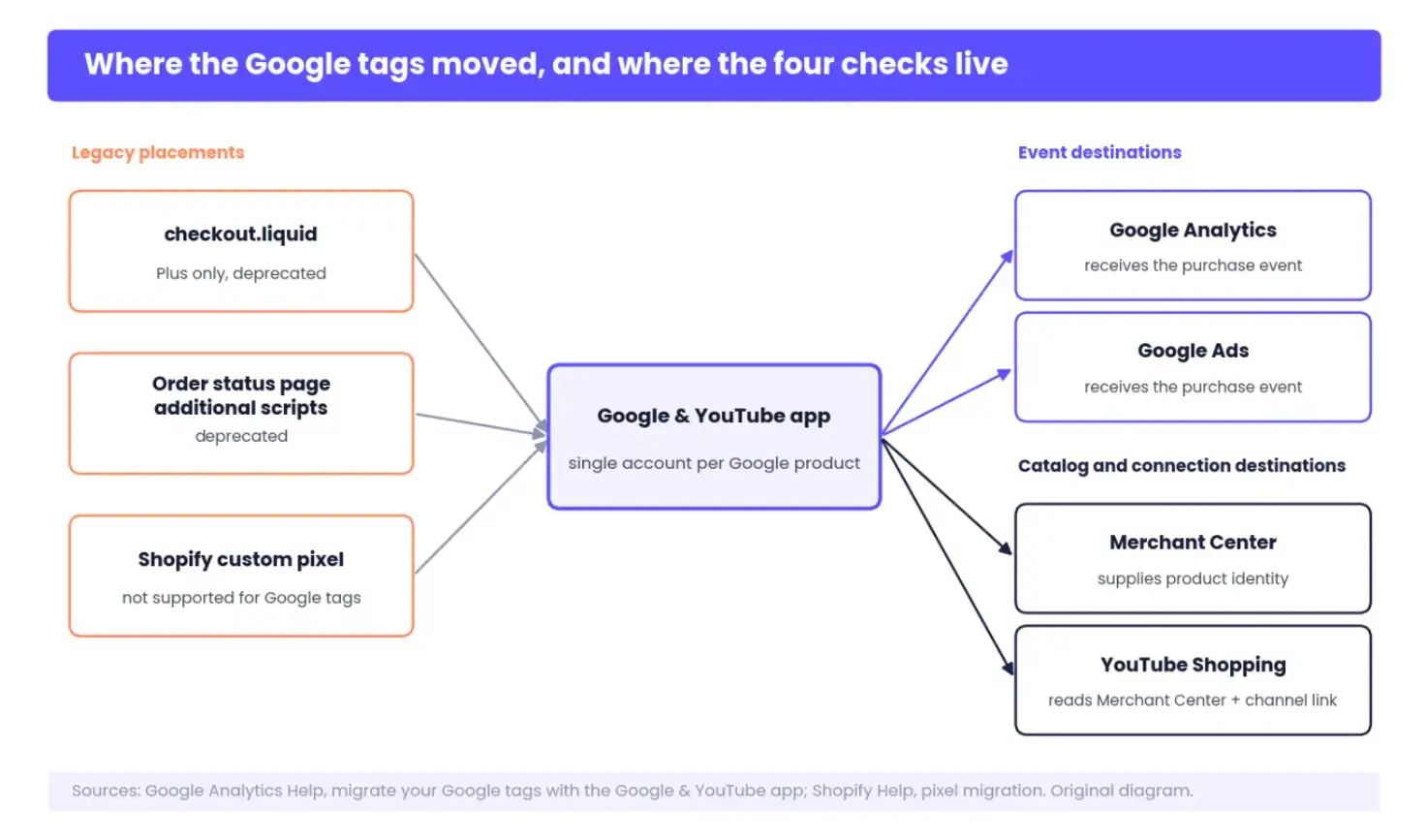
Where the tags moved, and why the four destinations need separate checks: Analytics and Ads receive the purchase event, while Merchant Center and YouTube depend on product identity and account links.
Build the Receipt Before You Place the Order
Write the evidence card first. Every destination processes on its own schedule, and if you place the order and then go looking for the fields, the trail is already cooling.
The order half: the Shopify order number you expect, the transaction ID the app will send (on the Google & YouTube setup, it is the order ID, so note the format), the order total and currency, the product variant and SKU, and the Merchant Center item ID for that product.
The destination half: the Analytics property and measurement ID, the Google Ads conversion action name and account ID, the Merchant Center account ID, and the YouTube channel the app is linked to. Google's Shopify setup page lists which events the app sends and how to verify them, so it doubles as the field key for the card.
Then open the two live windows before anything is bought: Tag Assistant for the browser side and GA4's DebugView for the property side. Tag Assistant and DebugView show events as they happen, and the standard reports don't.
Now the warning: this is where a live store gets hurt. Shopify supports test orders, but putting the payment provider into test mode means real customers can't complete a purchase for as long as it's on.
On a store with any traffic, schedule a short window at the quietest hour and switch test mode off the moment the order is through, or place a small real order on your own card and refund it afterwards.
Either way, the order has to go through the storefront and the checkout. A draft order created in the admin skips the pages the tags live on, so it proves nothing.
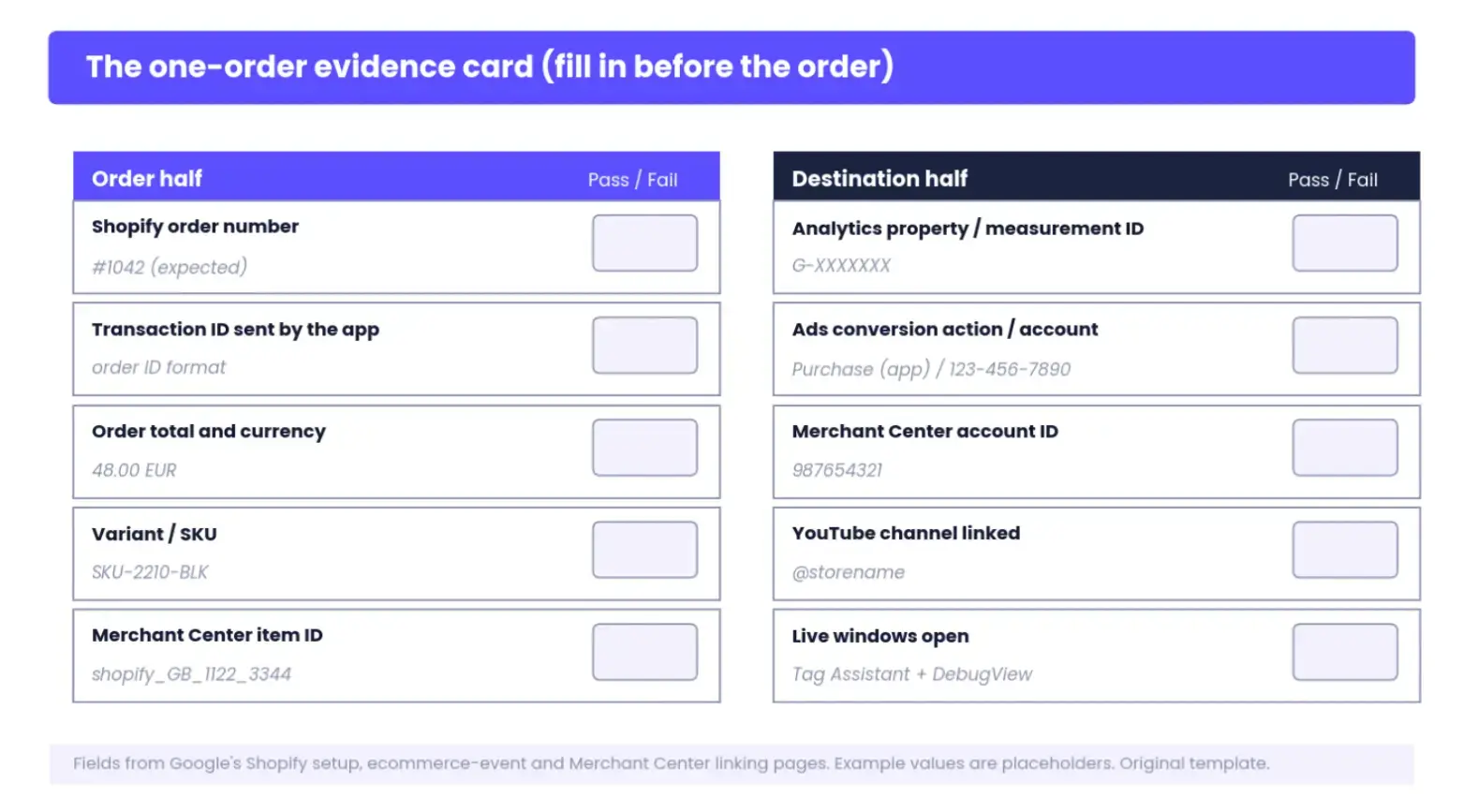
The one-order evidence card, filled in before the purchase so every destination is compared against the same values. The example values are placeholders.
Does the Purchase Fire Once?
Yes, if Tag Assistant shows one purchase event on the Thank you page and DebugView shows the same event once, with the fields you wrote down. The rest of this section is about the ways that sentence fails.
Walk through the order from the product page through checkout to the Thank you page with Tag Assistant recording. On the final page, the app's purchase event should appear once, carrying a transaction_id that matches your card, the value, the currency, and an items array with the variant you bought. Switch to DebugView and find the same event under the same timestamp. Screenshot both.
Did this order fire once, with the fields you wrote down? The answer is in the event record, and it comes in three flavours. Nothing fired, which usually means the tag never made it to the upgraded Thank you page.
Two events fired, which after this migration almost always means the legacy snippet or custom pixel is still alive alongside the app. Or one event fired with bad fields, most often a blank or reused transaction_id.
The bad-field case is the quiet one. GA4 deduplicates on transaction ID, and both faults cost you orders rather than adding them. A reused ID collapses distinct orders into one. A blank one is worse, because Google deduplicates every purchase event that carries an empty transaction_id as though it were the same sale.
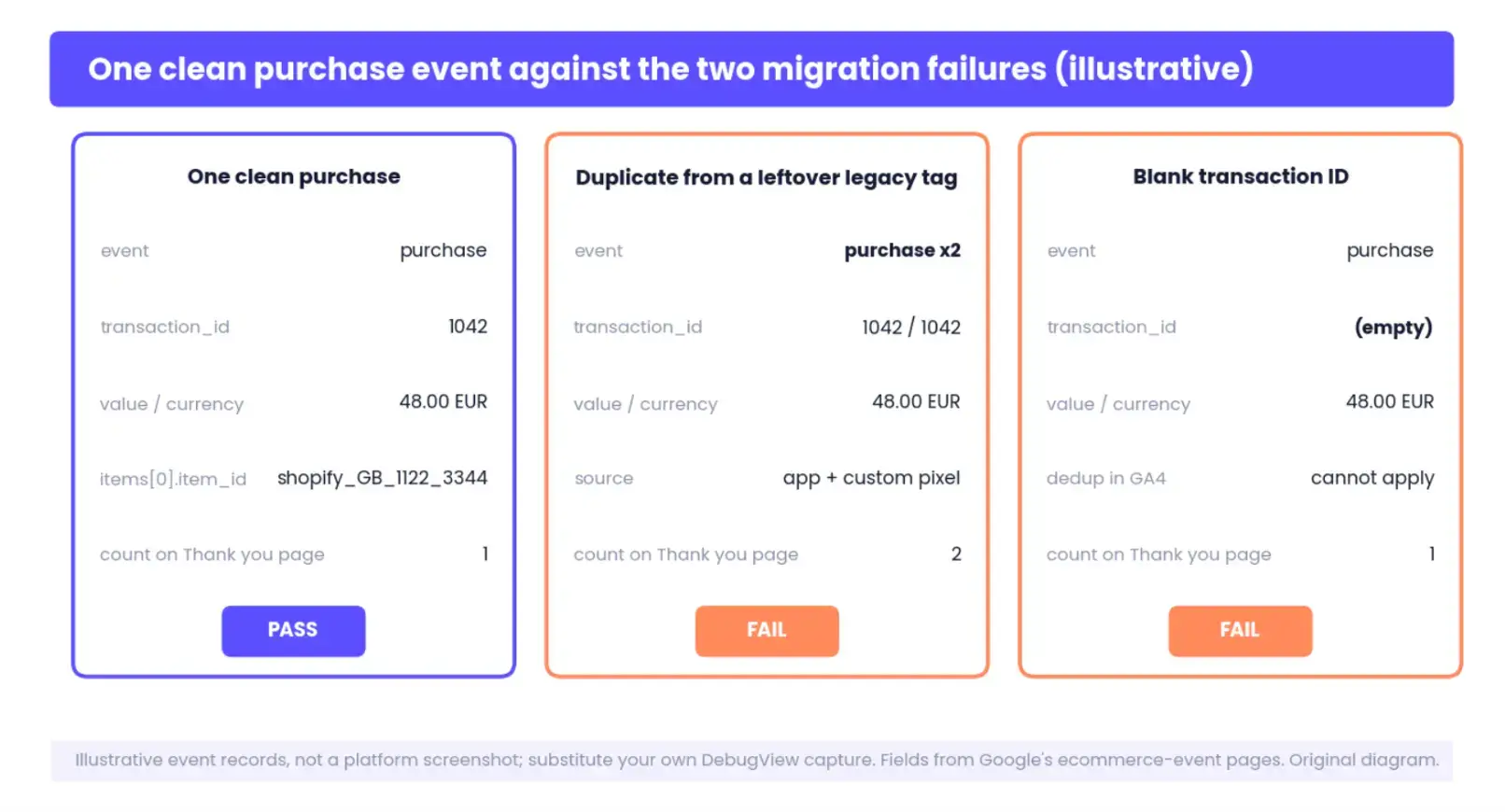
What the event record should look like against the two failures the migration creates. The values are illustrative; substitute your own DebugView capture.
Do Google Ads and Analytics Agree on the Same Order?
Ads and Analytics should agree on identity and disagree, within limits, on totals. Treating every gap between the two dashboards as a bug is how merchants end up reinstalling working tags.
Start with identity. The same transaction ID, value, and currency should reach the Google Ads conversion action you named on the card. Google Ads' own tag diagnostics flag the specific faults to look for: duplicate tags, missing transaction IDs, and conversion actions that stopped receiving data. Then check the action itself.
The app's conversion action should be the primary one for purchases, and any legacy conversion action from the old snippet should be secondary or removed; two primary purchase actions count the same order twice for bidding, even if Analytics is clean.
Now the legitimate differences, which belong on the card as expected variance rather than as faults.
Steve Ganem (Director, Product Management, Google Analytics) opened a 2024 Google post with the case for it: "Measurement is essential for marketers to understand the impact of their efforts and make more informed decisions."
A merchant who can't say which purchase count is real can't make an informed decision about the campaign that produced it. A conversion-rate change, on its own, tells you where to investigate, and it can't identify whether the purchase event, the catalog match, or the checkout itself changed.
Can Google Match the Sold Item to the Product It Promoted?
It can if the item_id in your purchase event is the same identifier Merchant Center holds for that product, and this is the check most migration audits skip because nothing in the Ads or Analytics dashboards looks wrong when it fails.
If the IDs differ, the sale is measured, and the revenue is real, but Google can't tie it to the product it promoted, and Shopping campaigns learn from a blank. Compare the item ID from your DebugView capture with the product ID in Merchant Center.
If they don't match, Google's cart-data diagnostics will flag the unmatched IDs, and the fix is on the transaction side, in the item mapping the app sends. Changing a long-running Merchant Center ID to match the tag throws away that product's performance history, which is the opposite of what you want.
While you're in Merchant Center, check that the product synced from Shopify is approved and active, and that the Google & YouTube app is linked to the right accounts: the Merchant Center you intended, the Ads account on your card, and the YouTube channel if you sell through YouTube Shopping.
This is where the four destinations stop being four copies of the same thing. Analytics and Ads received the purchase event. Merchant Center supplies the product identity.
YouTube Shopping uses that Merchant Center source and the channel link, and its order figures can legitimately differ from Shopify's for reasons YouTube documents, so the YouTube check is a connection check rather than a hunt for a fourth copy of the purchase event.
The same product-data consistency that helps an AI shopping agent understand a page decides whether Google can match the sold item to its catalog record.
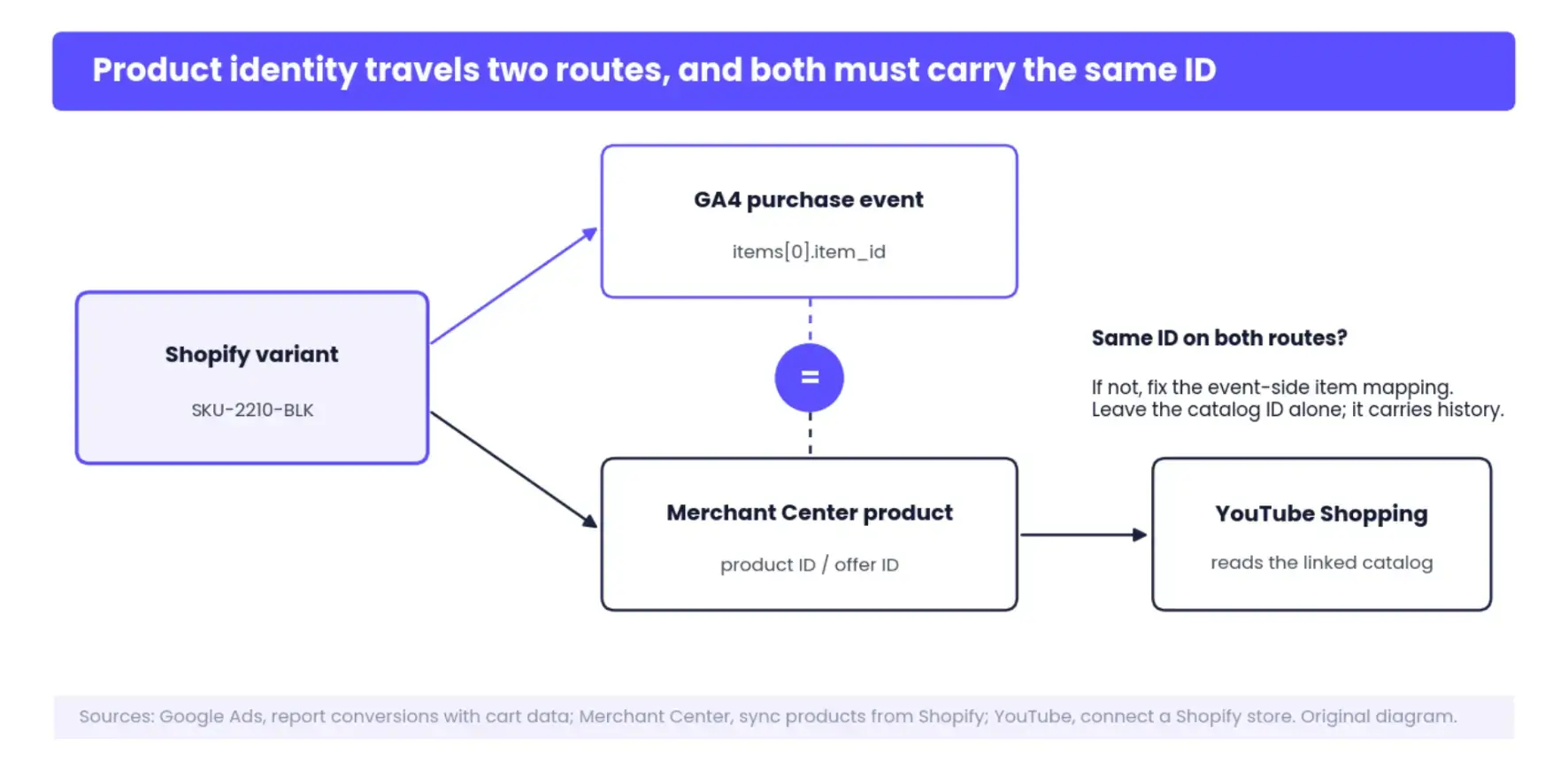
Product identity travels two routes: as an item field inside the purchase event, and as a catalog record that Merchant Center holds and YouTube Shopping reads. The audit checks that both routes carry the same ID.
Fix One Layer, Rerun the Same Order
Fix one layer, rerun the same order, compare against the same card. That sequence is the whole method, and it's the reason the card exists.
Reinstalling every tag might also fix the problem, but it destroys the evidence of what was wrong, and the next discrepancy starts from zero.
Work down this list and stop at the first failure.
- No event in Tag Assistant. The tag isn't reaching the upgraded Thank you page. Confirm the app's tag is enabled and that the post-checkout pages are the upgraded versions; the deprecated scripts box no longer runs there.
- Two events in Tag Assistant or DebugView. A legacy snippet or custom pixel is still firing next to the app. Record what fires and from where, then remove the legacy copy, never the app's, and rerun the order. This is the post-migration failure that deserves the most patience, because the duplicate often hides in a pixel someone forgot they added.
- Blank or reused transaction ID. Check what the app is passing as the ID and whether a custom pixel is overriding it. Google's ecommerce diagnostics list the transaction-ID faults it can detect.
- Wrong value or currency. Check the mapping and, if only discounted orders are off, remember that Shopify corrected how order-level discounts feed the subtotal on the upgraded Thank you page in late April 2025, which lowered reported values on exactly those orders.
- Wrong Ads conversion action or account. Make the app's action primary, demote or remove the legacy action, and confirm the account ID matches the card.
- Item ID doesn't match Merchant Center. Fix the item mapping on the event side; leave the catalog ID alone.
- Product not synced or disapproved. Resolve it in the Google & YouTube app's product status before expecting Shopping attribution.
- YouTube channel not linked or ineligible. Fix the link in the app; it has nothing to do with the purchase event.
Each branch ends the same way: rerun the controlled order and fill in a second card. Keep both. The pair is your before-and-after, and it belongs with the wider ecommerce audit so a measurement change can be tied to the store change that caused it.
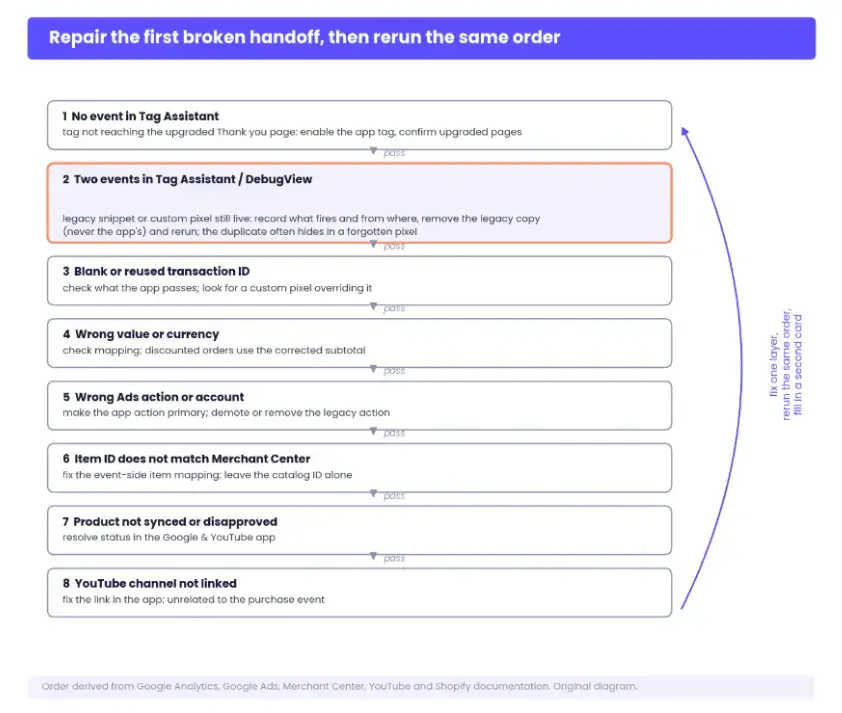
The repair order, from the first handoff to the last. The branches are deliberately unequal: the duplicate-event branch gets the detail because it is the failure this migration creates most often.
Keep the Receipt for the Next Change
File the two cards beside the migration record and repeat the trace whenever something upstream changes: a checkout edit, a consent banner update, a product feed change, a new Ads account.
Each of those can break one handoff without touching the others, and a five-minute controlled order is cheaper than a week of arguing with dashboards.
Once the purchase trail is clean, add one source of evidence the platforms can't give you. Ask buyers how they found you with POWR Customer Survey, one question on the order confirmation or in the follow-up email, and compare those answers with the channel story Analytics and Ads are telling.
The survey won't replace attribution, and it isn't meant to. It catches the case where every tag fires perfectly, and the story is still wrong, because a customer who writes "a friend sent me the link" is naming a channel no transaction ID can.
The migration screen says the work ran. The receipt says it worked.
