


The contact form is the conversion point on your entire Wix site. Homepage positioning, product pages, pricing, and the about page all of it funnels toward one decision: the visitor reaches out.
Most merchants route that decision through three default fields and a notification that looks like every other email in the inbox. They invest in design, copy, and ad spend, then hand the result to the least-considered element on the page.
The cost isn't the form. It's the gap between visitors who came ready to buy and visitors who actually became leads. Add a contact form to Wix that does the qualifying before the lead reaches you, and that gap closes.
Here's how to add a contact form to your Wix site with POWR Form Builder in under five minutes. No code, no developer.
Why a Wix Contact Form Belongs on Every Site
Wix ships a built-in form element in the Editor's Add panel, and it ships the same way in Wix Studio. Name, email, message, one notification inbox. It clears the bar for a site that doesn't have traffic yet.
The ceiling shows up the moment the site starts working.
No conditional logic, so every visitor sees the same generic fields whether they want a quote, a support reply, or a partnership conversation. No file uploads, so a designer can't attach a brief, and a contractor can't attach a photo.
Notifications land in one inbox in one format, with no way to route a quote request to sales and a support question to support. Styling inherits the theme and stops there.
The inquiry that would have closed in two emails takes six. The submission that needed to reach the right person sits in a shared inbox until someone forwards it.
A contact form for your Wix site that handles all of that isn't a redesign project. The install below takes just a few minutes.
How to Add a Contact Form to Wix in 5 Steps
Here's the full install, start to finish. A no code Wix form, no developer, no theme edits. POWR Form Builder is listed in the Wix App Market as Forms & Payments. Same app.
- Install POWR Form Builder from the Wix App Market
- Drag the form onto your contact page
- Configure fields (name, email, message, optional phone)
- Match form styling to your site fonts and colors
- Set up notifications and publish
Install POWR Form Builder from the Wix App Market
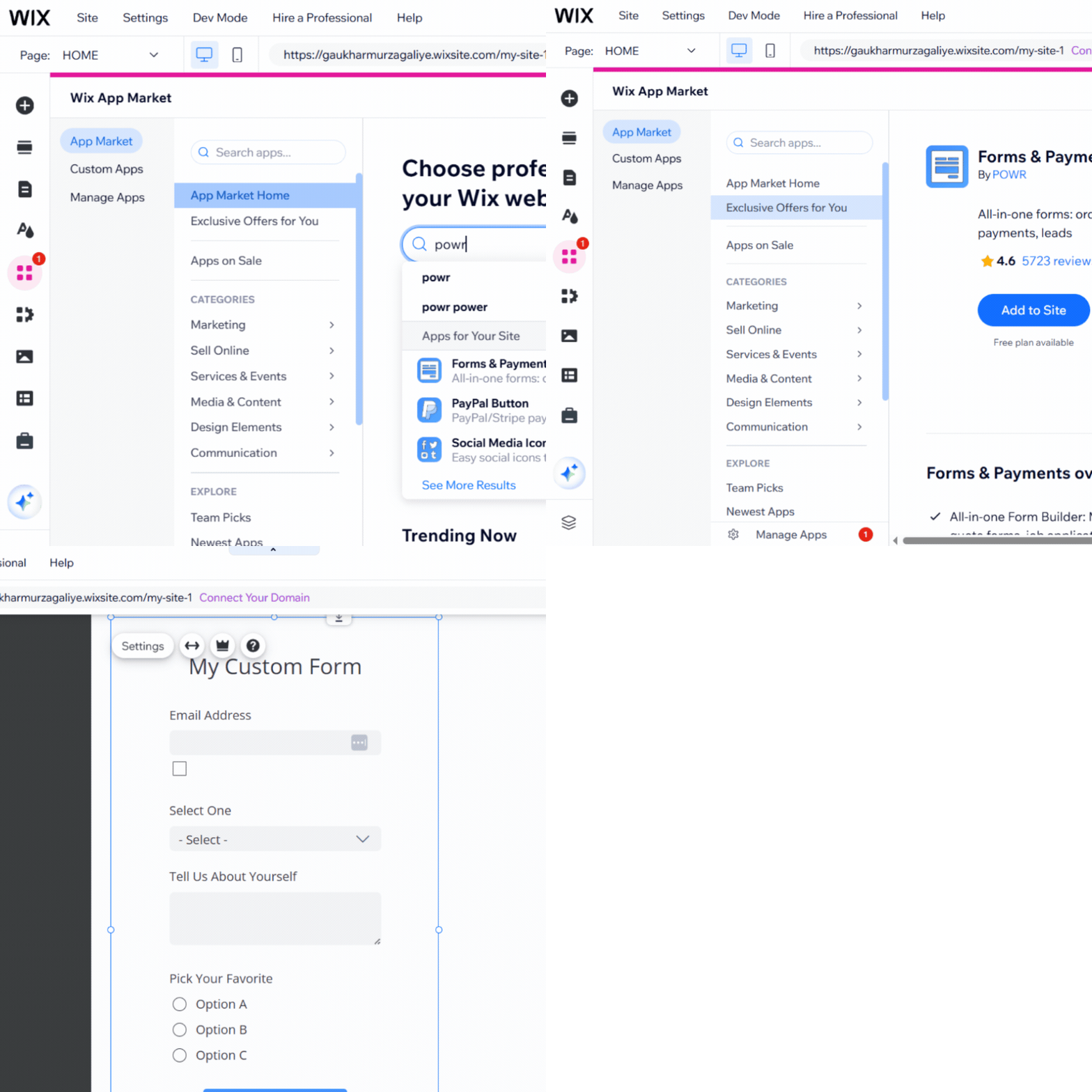
Open the Wix Editor and head to the App Market. Search POWR, pick Forms & Payments from the results, and click Add to Site. POWR Form Builder drops a sample form onto your homepage as a starting point. You'll move it to your contact page in the next step.
Drag the Form Onto Your Contact Page
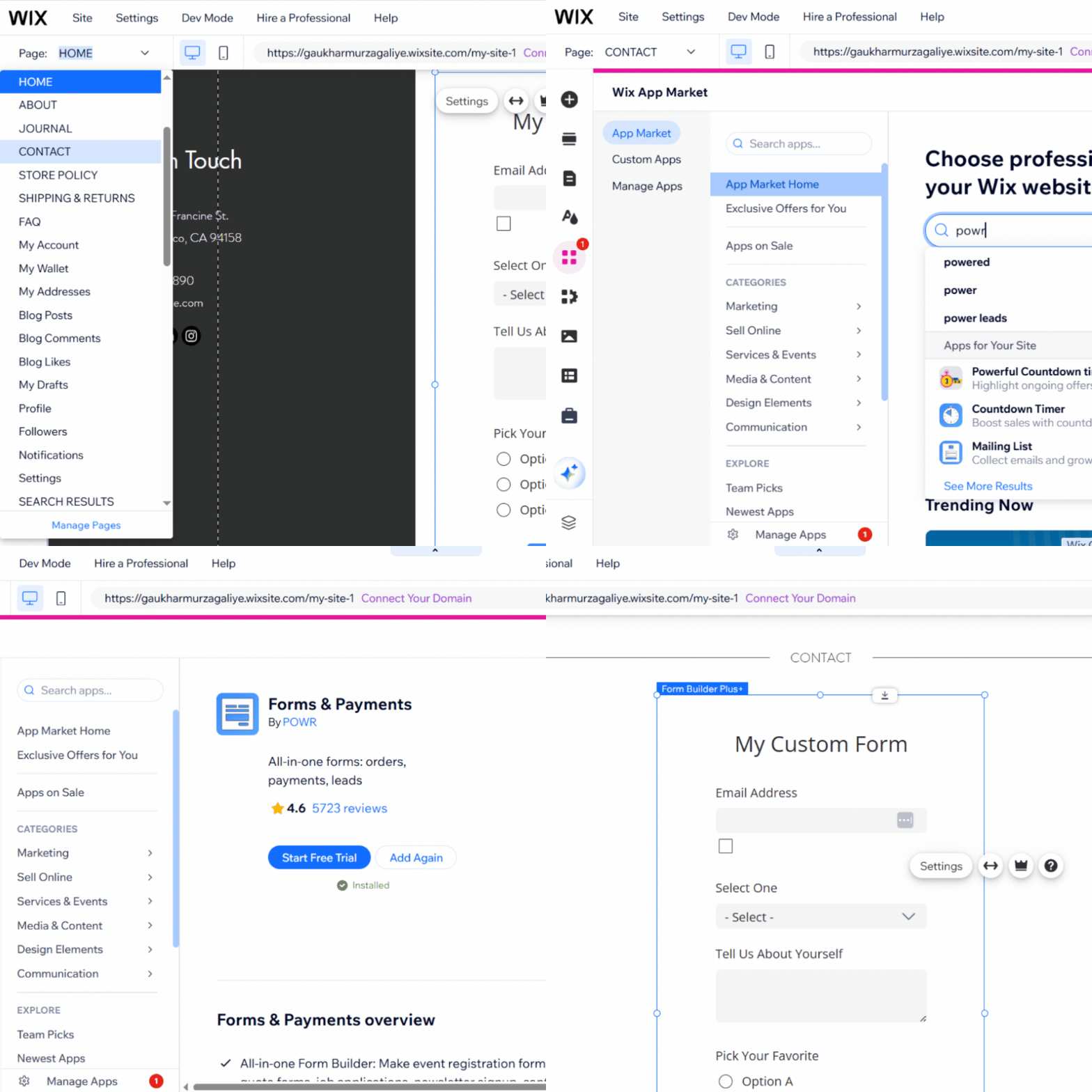
Click the Page dropdown in the top toolbar and select Contact. From the Add Apps panel, search for POWR and click Add Again to drop the form onto your contact page.
One cleanup step: head back to your homepage and delete the sample form that landed there during install. Otherwise, you'll ship a site with the form in two places.
Configure Fields (Name, Email, Message, Optional Phone)
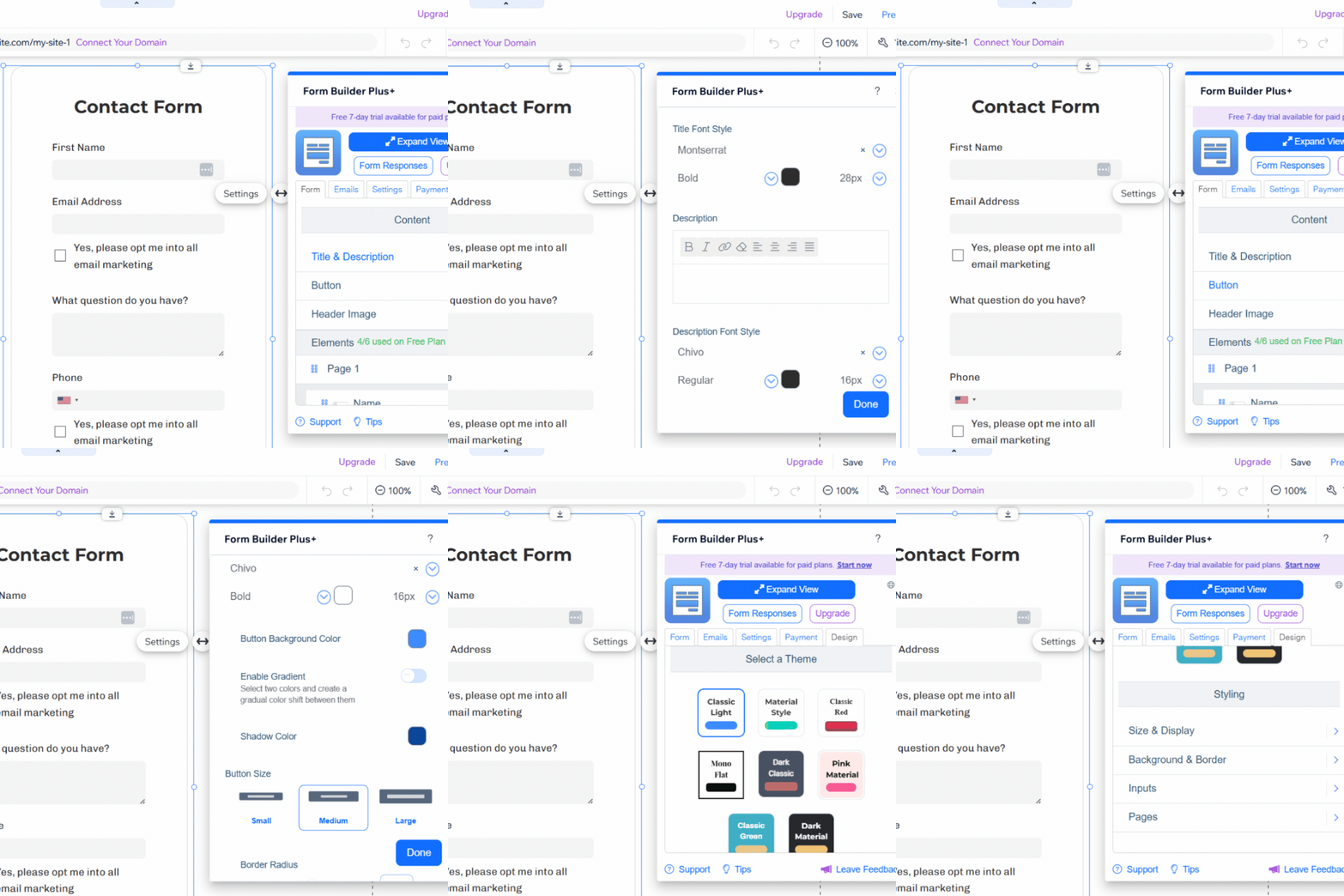
Click Settings and scroll to the end of the Form section. Click + Add Element and select Name, then drag the Name field to the top of the list under Page 1, above Email Address.
The sample form ships with two demo fields, Select One and Pick Your Favorite, that aren't useful for a contact form. Delete both. Click + Add Element one more time and add Phone Number as an optional field.
That covers the four fields most contact forms need: name, email, phone, and message. If your business needs more (a dropdown for service type, a file upload for project briefs, conditional logic that shows fields based on earlier answers), POWR Form Builder supports all of it from the same Add Element menu.
The sample form ships with placeholder copy. Edit the Title & Description at the top of the form to something like Contact Form, and rename the Tell Us About Yourself field label to What question do you have? (or whatever fits your business).
Match Form Styling to Your Site Fonts and Colors
Everything you need is in the Form tab. Open Title & Description and Button, and work through three things that decide whether the form looks like it belongs:
- Fonts. Set the font, size, and color to match your site's headings and body styles. Don't introduce a third typeface.
- Primary color. Pull your site's button color into the form's submit button so it reads as part of the site, not a widget.
- Corner radius. Match the submit button to the rounding on your existing site buttons. Mismatched radius is the most common giveaway that a form was bolted on.
For deeper styling (themes, backgrounds, borders, input field styling), the Design tab gives you eight prebuilt themes and granular control over the rest. Most merchants won't need it for a clean contact form.
Save and preview. The form should look like a section of the page, not an embed.
Set Up Notifications and Publish
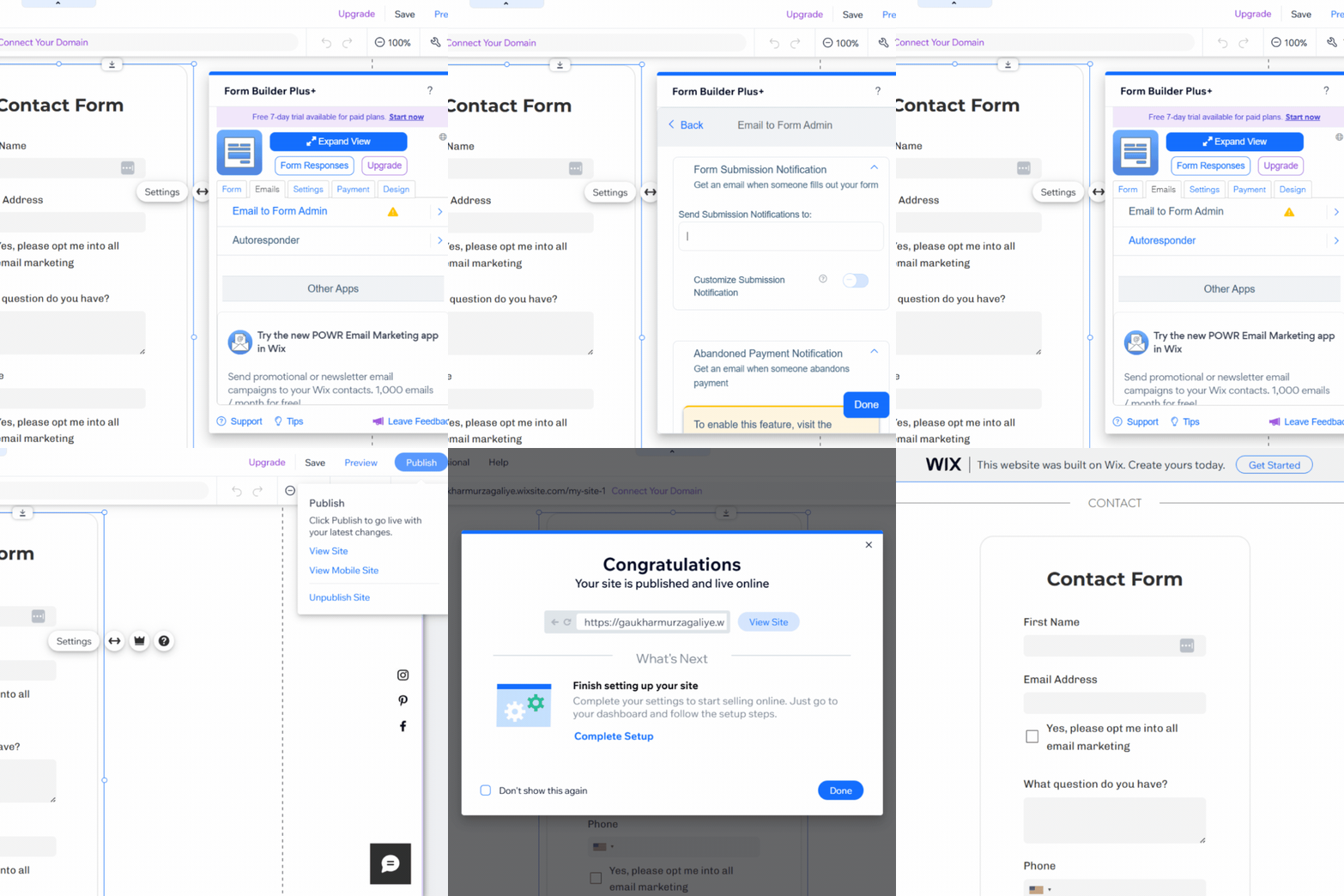
Open the Emails tab and go to Email to Form Admin. Add your email address (and any teammates who should also be alerted) to the Send Submission Notifications to field. That's how you'll receive Wix form submissions by email.
In the same tab, enable the Autoresponder. Every visitor who submits the form gets an immediate confirmation that their inquiry landed and that you'll be in touch. Without it, they're guessing.
Hit Publish in the Wix Editor. Your Wix contact form is live.
The next inquiry that comes in will land in the right inbox, with a confirmation already sent back to the visitor, in a form that looks like it belongs on your site.
Where to Place a Contact Form on a Wix Site
Most Wix merchants put a contact form on their contact page and call it a day.
The higher-leverage placements catch visitors who weren't planning to contact you, at the moment they're closest to deciding.
Service or product pages. A visitor reading about your specific offer is a visitor with intent. A short form embedded directly on the page captures the inquiry without making them hunt for your contact page. For service businesses, this is usually the highest-converting placement on the site.
The footer. Every page on your site has a footer, and footers catch visitors who scrolled past everything without converting. A compact form here (name, email, one question) is the safety net for the visitor who almost left.
The contact page itself. Still worth having. This is where visitors who searched for "your business + contact" will land, and it's the placement that handles unstructured inquiries that don't fit anywhere else.
POWR Form Builder lets you place a different form on each page, with different fields and different routing rules.
The contact page form can stay broad. On a service page, the form can ask a qualifying question that turns a reader into a lead. The footer version stays minimal.
One install, multiple placements, each doing the job that placement is good at.
How to Style a Wix Contact Form Without Breaking the Design
Most Wix merchants think of a contact form as something to brand: bigger button, brand color everywhere, custom font choices. The best contact forms are the ones that blend into your site without distracting your visitors with a different UX.
Avoid introducing a new primary color, font, or corner radius with your form. Pull from what your Wix theme already uses, so the form reads as a section of the page instead of a widget pasted in.
This level of styling control is what POWR Form Builder gives you that the default Wix form doesn't. Font, size, and color on each form element. Corner radius on fields and the submit button independently. Backgrounds, borders, and input styling under the Design tab. Eight themes if you want a starting point, granular controls if you don't. The default Wix form inherits your theme and stops there.
Pay close attention to the submit button copy. "Submit" is the default and the weakest option. Match the action your visitor is actually taking: Send message, Request a quote, Get in touch. The copy should sound like the rest of your site.
Once the form is fully set up, check it in mobile preview. Mobile is where bad styling shows up first. Look for label wrap that pushes fields out of alignment and submit buttons that stretch full-width when they shouldn't.
A form the visitor doesn't notice is a form the visitor fills out. That's the whole job.
FAQ
Does Wix have a built-in contact form?
Yes. Wix includes a built-in form element in the Editor's Add panel that captures name, email, and message. It works for a brand-new site, but the ceiling shows up fast: no conditional logic, no file uploads, no routing rules, and limited styling. Most growing Wix merchants outgrow it within the first few months.
How do I add a contact form to my Wix website?
Install POWR Form Builder (listed as Forms & Payments) from the Wix App Market, drag the widget onto your contact page, configure the fields you need, set up email notifications, and publish. The full walkthrough is in the five-step section above.
How do I receive Wix form submissions by email?
In POWR Form Builder, open the Emails tab, go to Email to Form Admin, and add your email address (plus any teammates who should also be alerted) to the Send Submission Notifications to field. POWR also supports an autoresponder, so the visitor gets an immediate confirmation that their inquiry landed.
Can I style a contact form to match my Wix site?
Yes. POWR Form Builder gives you font, size, and color control on each form element, independent corner radius on fields and the submit button, and a Design tab with eight prebuilt themes and granular styling controls. Pull from your Wix theme's existing fonts and primary color so the contact form for your Wix site reads as a section of the page rather than a widget pasted in.